Mission Control
When several agents are running, each gets its own column on one screen, with its own model, effort level and history, so you can start, follow and redirect them all.


Where a traditional IDE adds an AI chat on the side, an agentic development environment makes your agents part of the workbench itself: the same project, the same terminals and the same editor, all watched and steered from one screen.
Workspace
Your project as its tooling sees it, across .NET, Node, Java and Kotlin, Python, C and C++, Rust and Go. Build, rebuild, clean, test, publish and restore from the tree, wherever the project's own tools offer them, and let it follow the file you're editing.
It follows whatever you're working on, so the actions on offer suit the current tab rather than everything at once. Every kind of tab has a ribbon of its own, and groups that don't fit fold into a menu instead of disappearing.
Every problem your language tools report, in a single list. Every use of a symbol, grouped by file, with each line shown and the match highlighted.
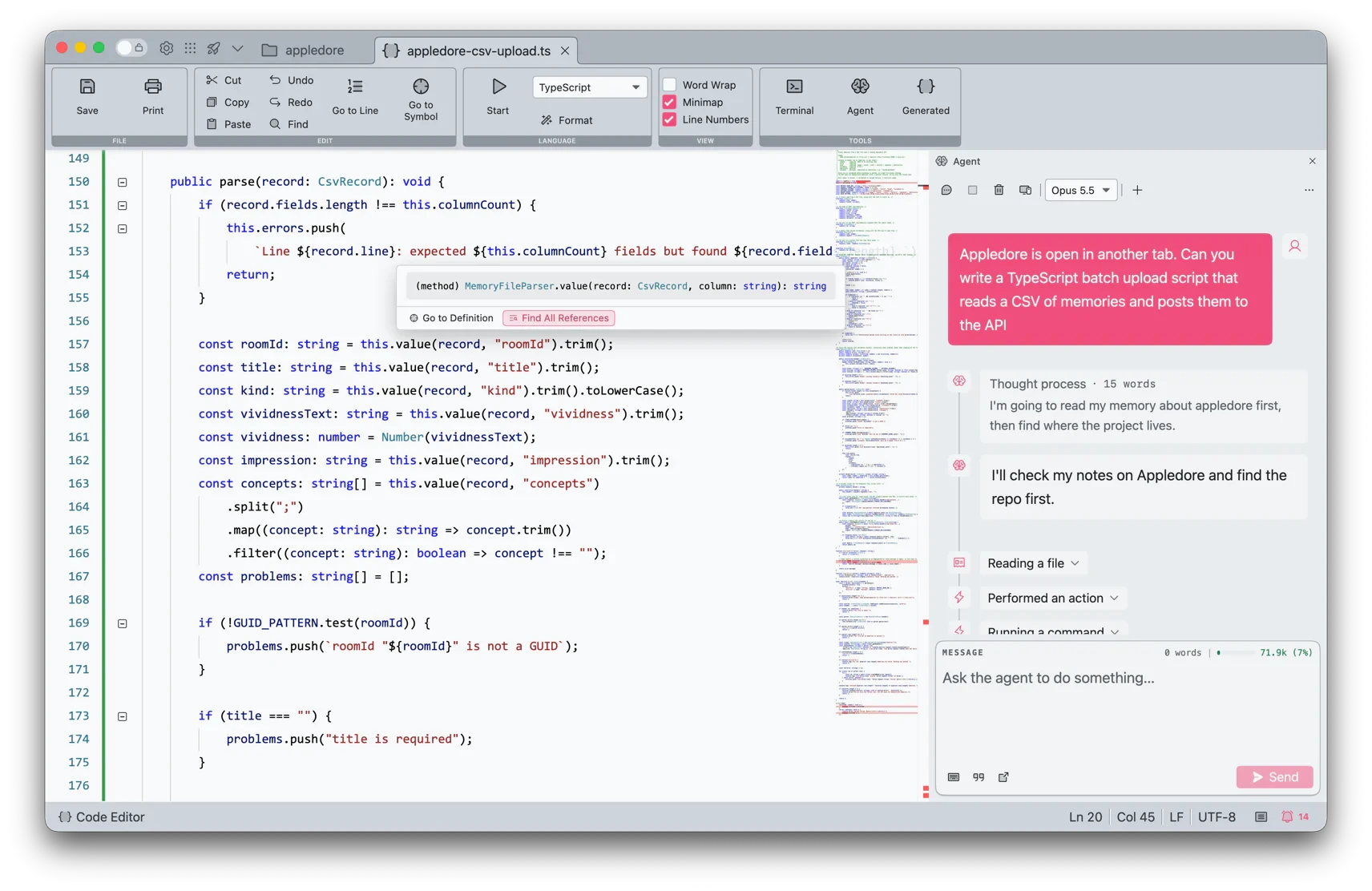
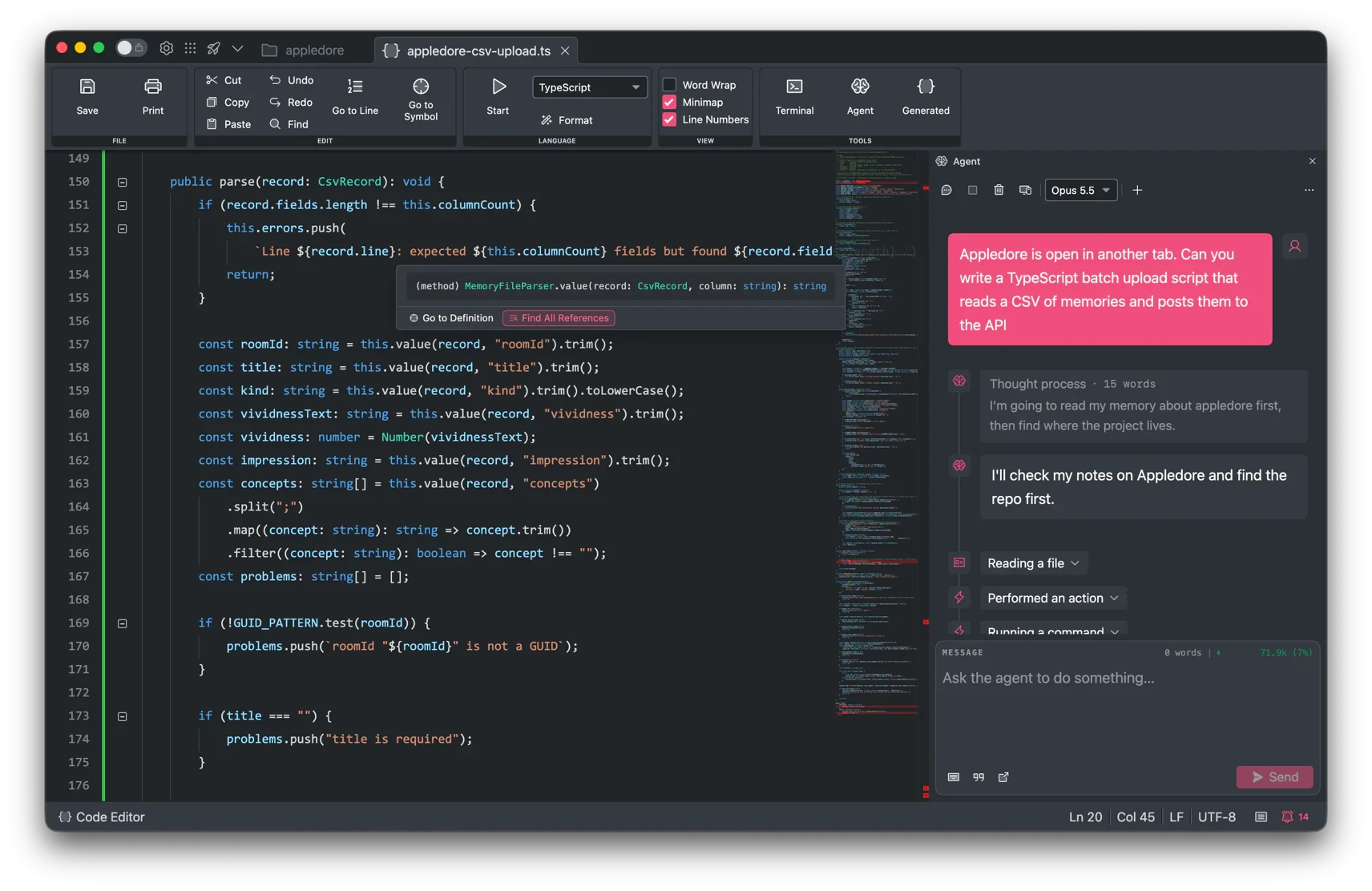
An agent docked alongside your code, working in the same project you have open. The code, Markdown and terminal menus all have Ask the Agent, so you can hand over whatever you're looking at.
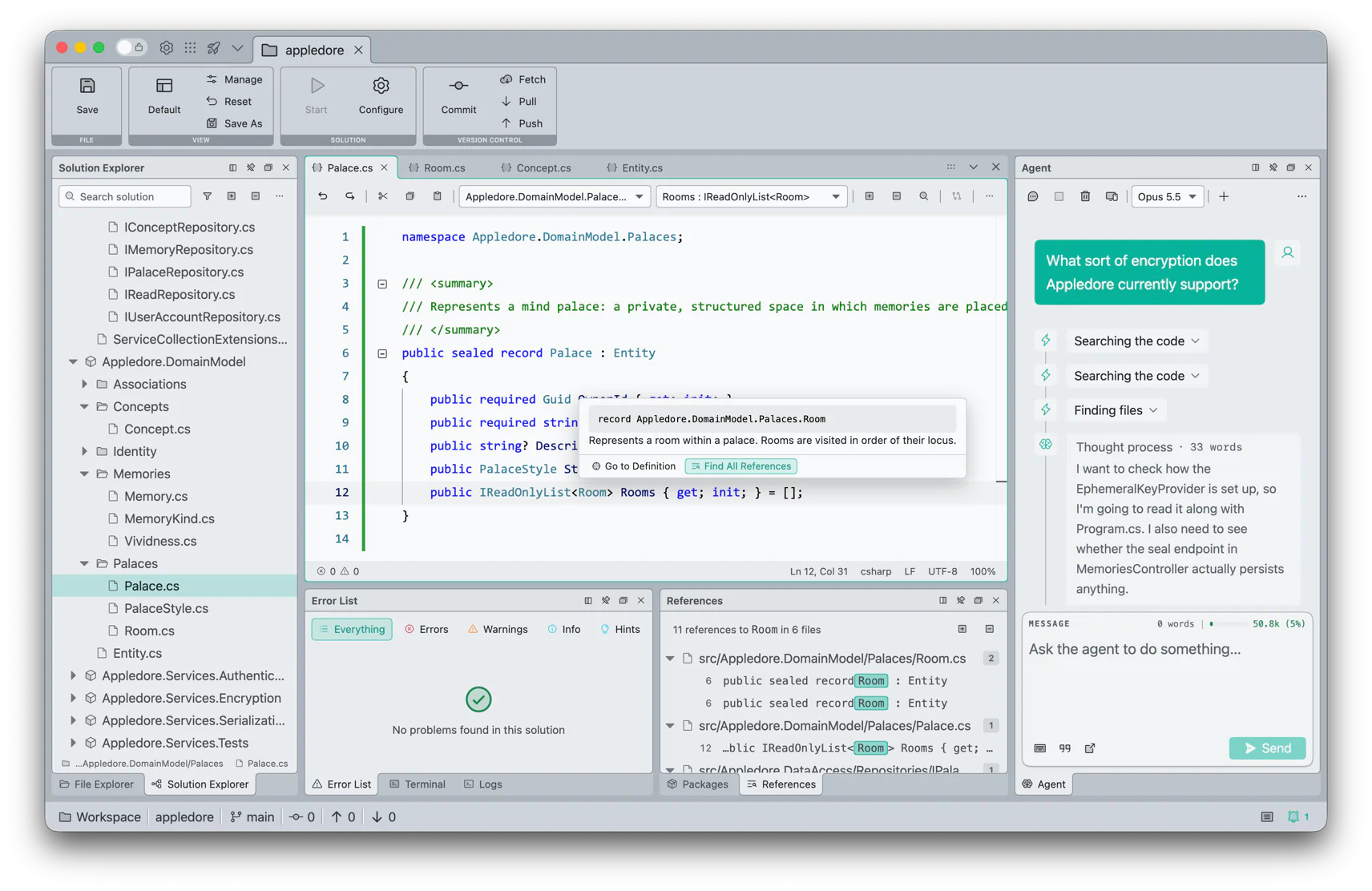
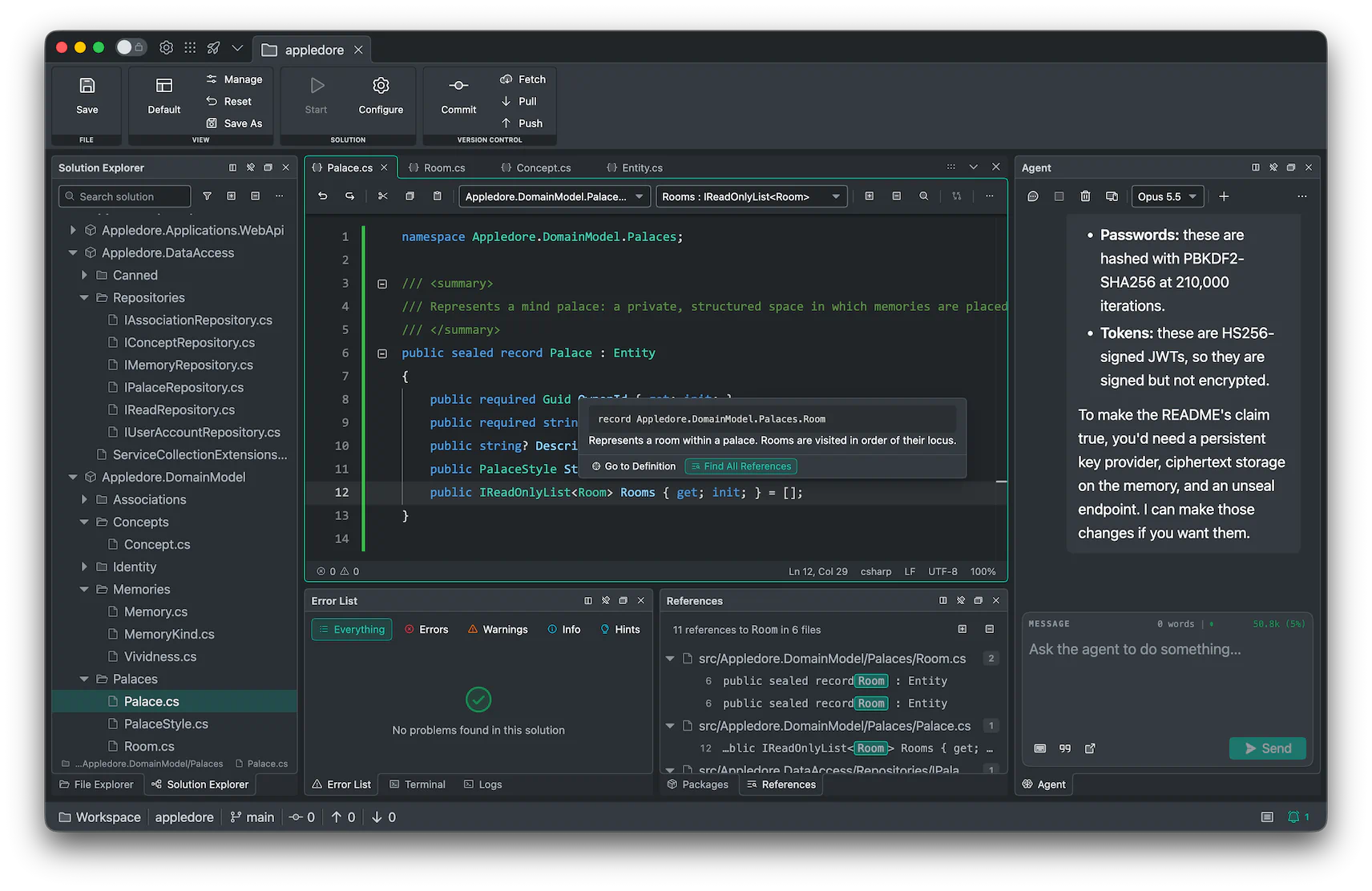
Code Editor
Hover for types and documentation, with completion and signature help as you type. Go to Definition, Find All References and Rename are one click away, along with the fixes your language server suggests.
A margin marks the lines you've changed since you last saved, and the ones you've saved this session, beside collapsible code. A setting turns it off or limits it to unsaved changes.
Search and replace across the workspace, the current project, your open files, the current file or a selection. Match case, whole words or a regular expression, and include ignored or hidden files when you need to.
Ask for a change and watch it land in the open document, through the same editor you're using. Changes an agent wants to make anywhere else go through the permissions you've set.
Binary Editor
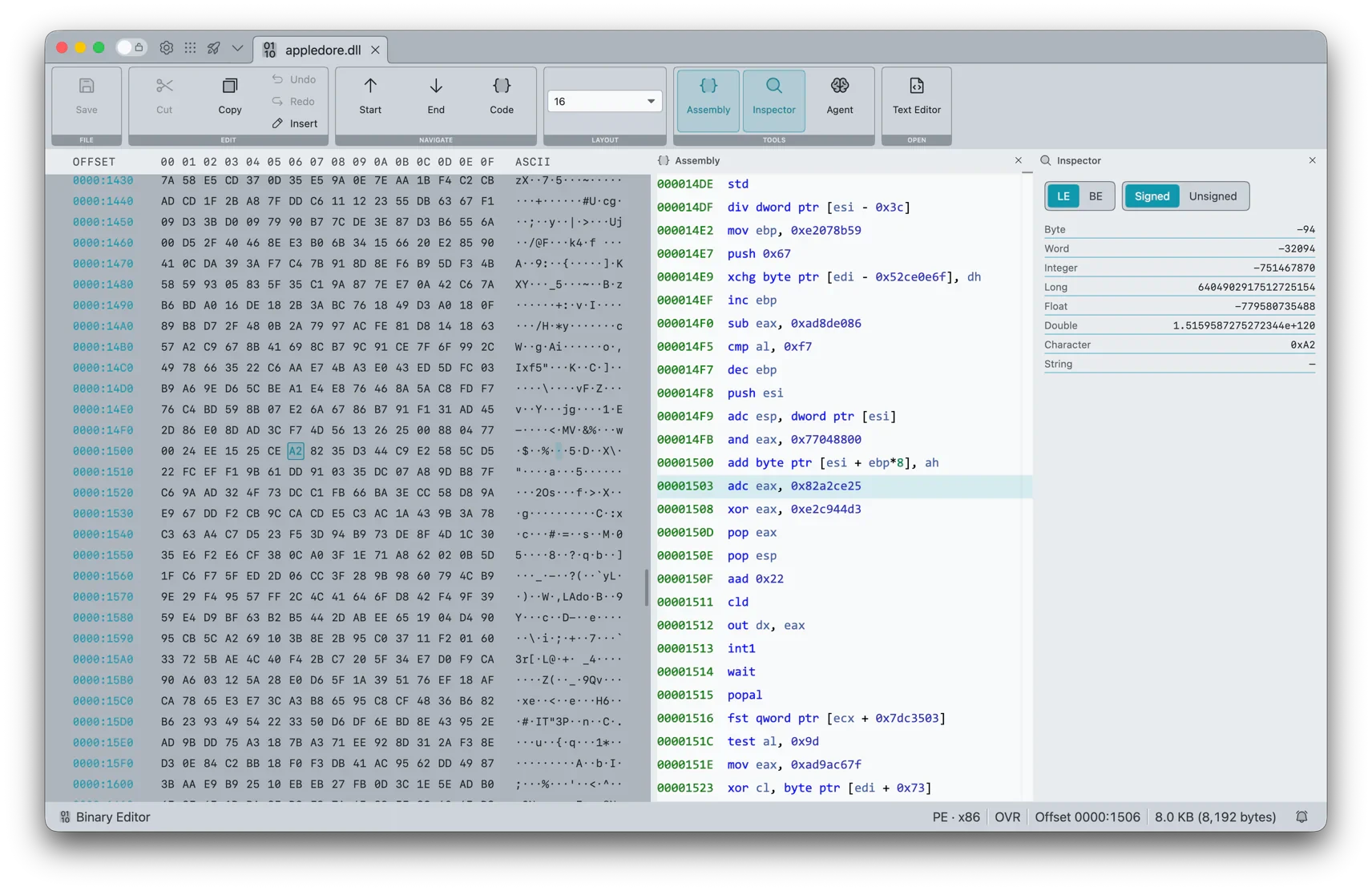
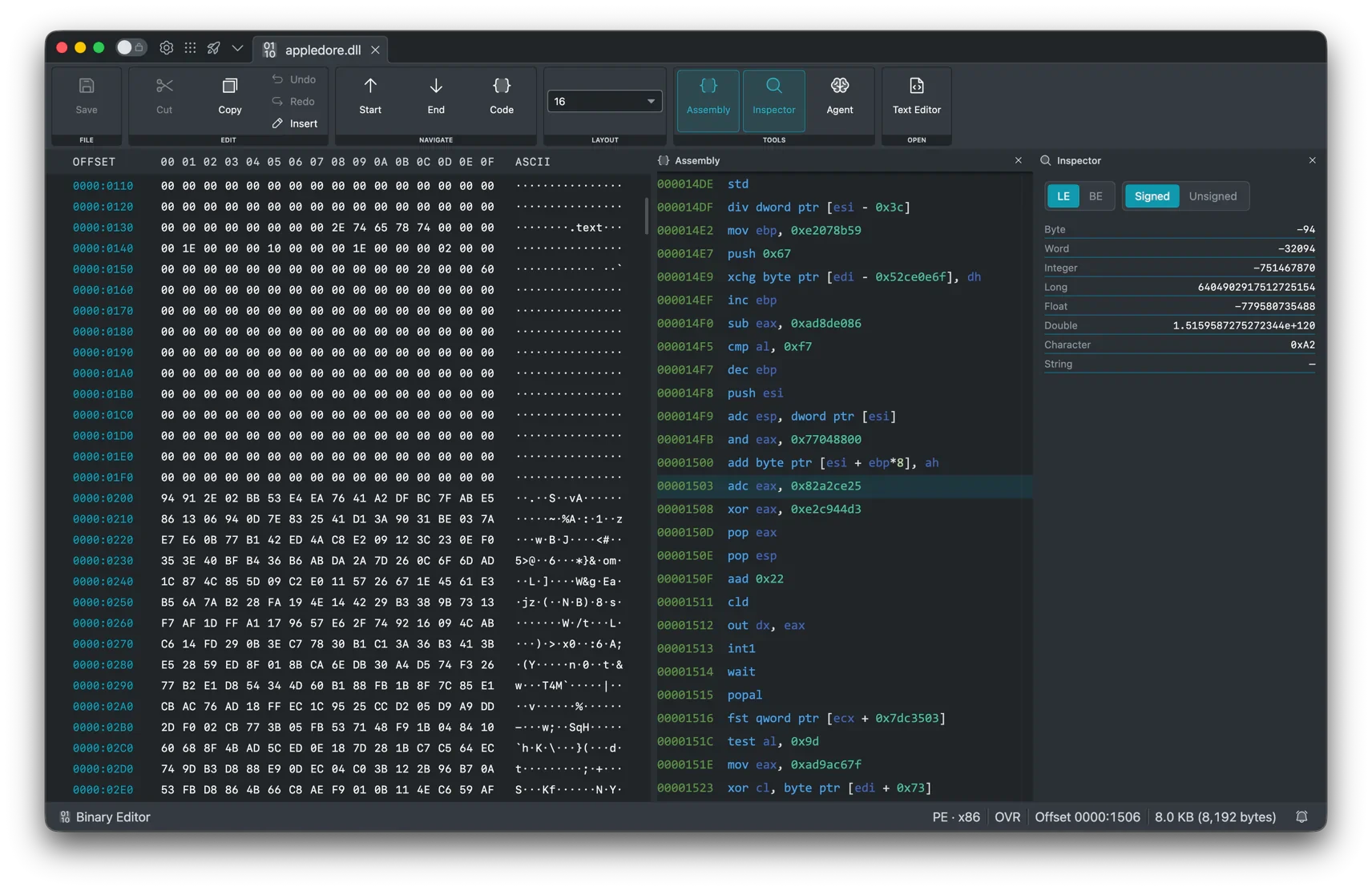
Insert, overwrite and delete bytes, with undo, and show 8, 16, 32 or 64 bytes to a row. Jump to the start, the end, or straight to where an executable's code begins.
With the decoder plugins, disassemble native PE, ELF and Mach-O binaries for x86, x64, ARM and ARM64, as well as JVM class files, WebAssembly and .NET IL. It recognises ReadyToRun .NET images and reads symbol files alongside them.
Read the value at the cursor as a byte, word, integer, long, float, double, character or string. Switch the byte order, or between signed and unsigned, and every row updates.
Markdown Editor
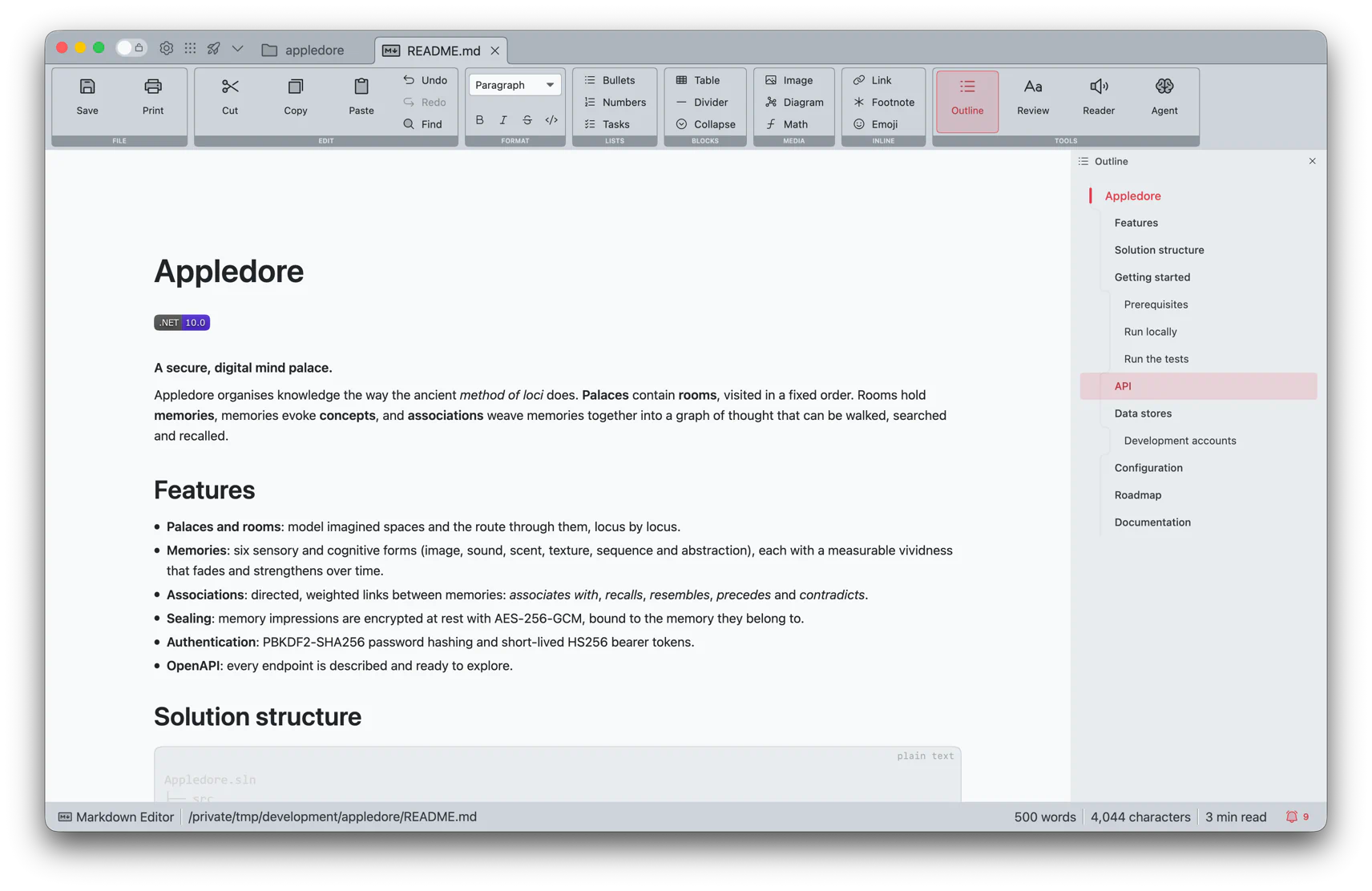
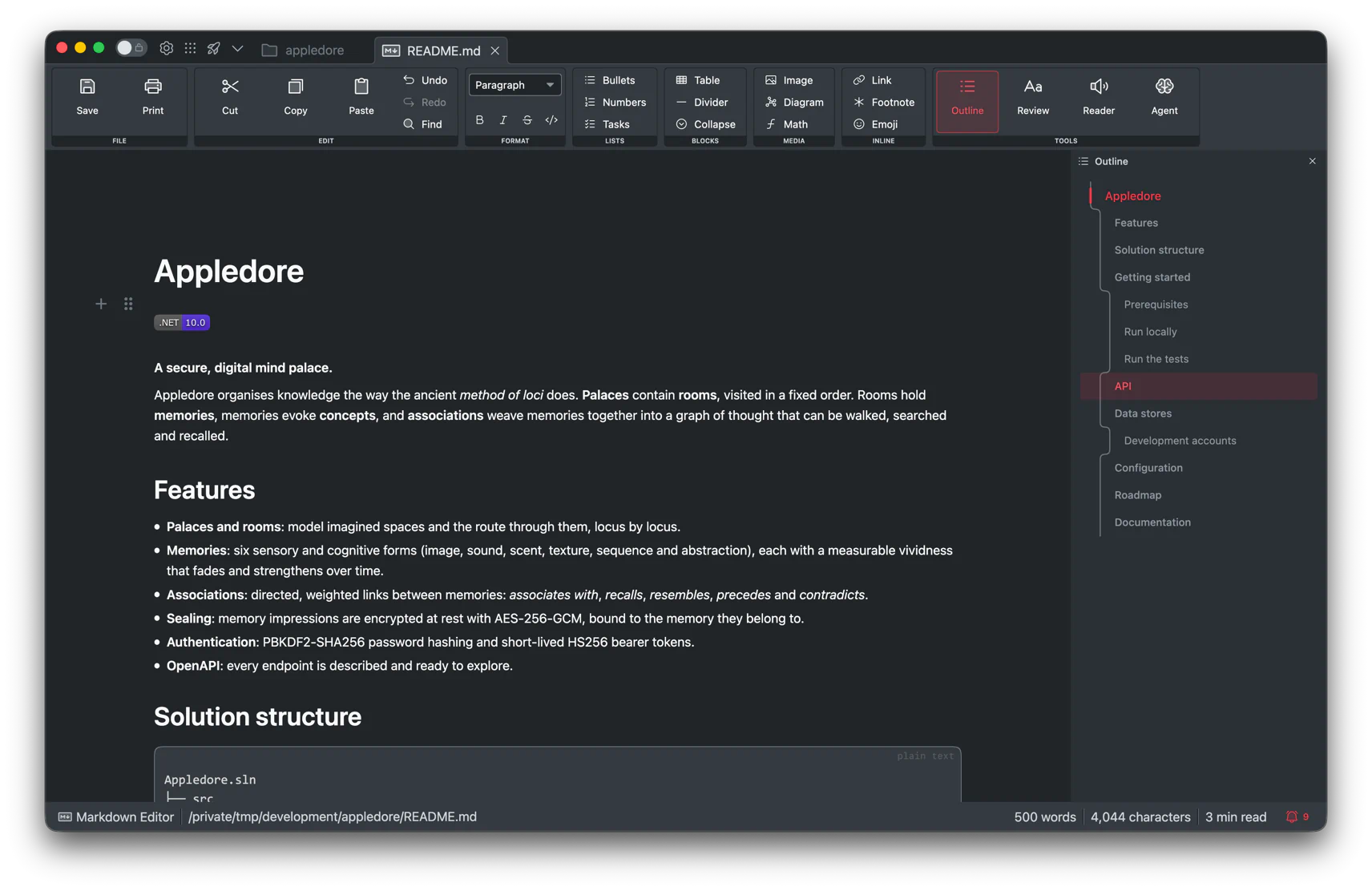
Mermaid diagrams and KaTeX math render in place as you write them, alongside tables, footnotes and task lists. The ribbon inserts each one for you, so there's no syntax to remember.
Every heading in one panel, which highlights the section you're reading as you scroll. Long documents stay easy to find your way around.
Check spelling, grammar and style, from repeated words to the passive voice, and change, ignore or add words to your dictionary. Or have the document read back in your system's voices, with each word or sentence highlighted as it goes.
Print a document, or export it to PDF when it needs to leave the project. Copy and paste works as Markdown or as plain text, whichever the other side expects.
Agents
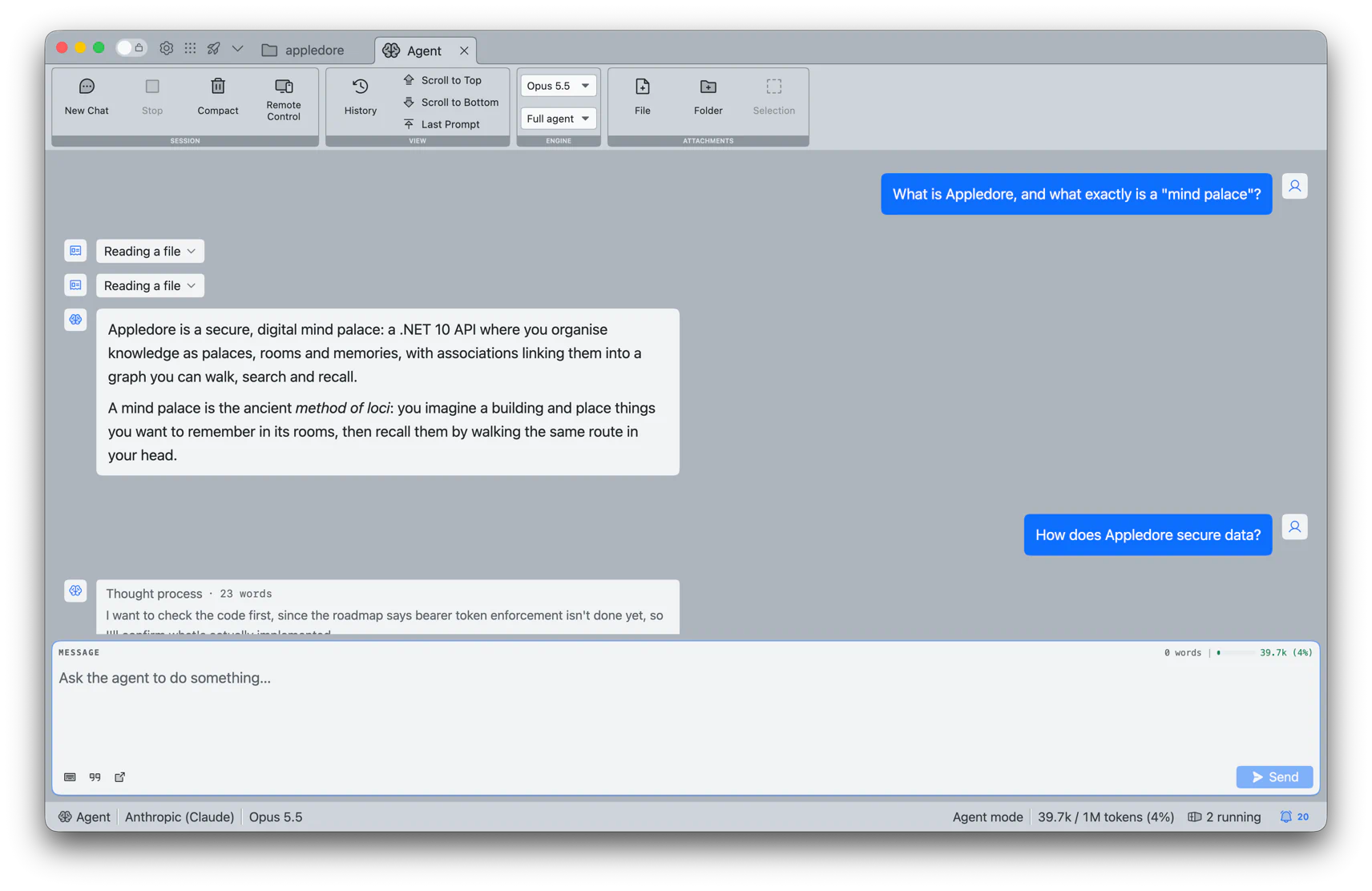
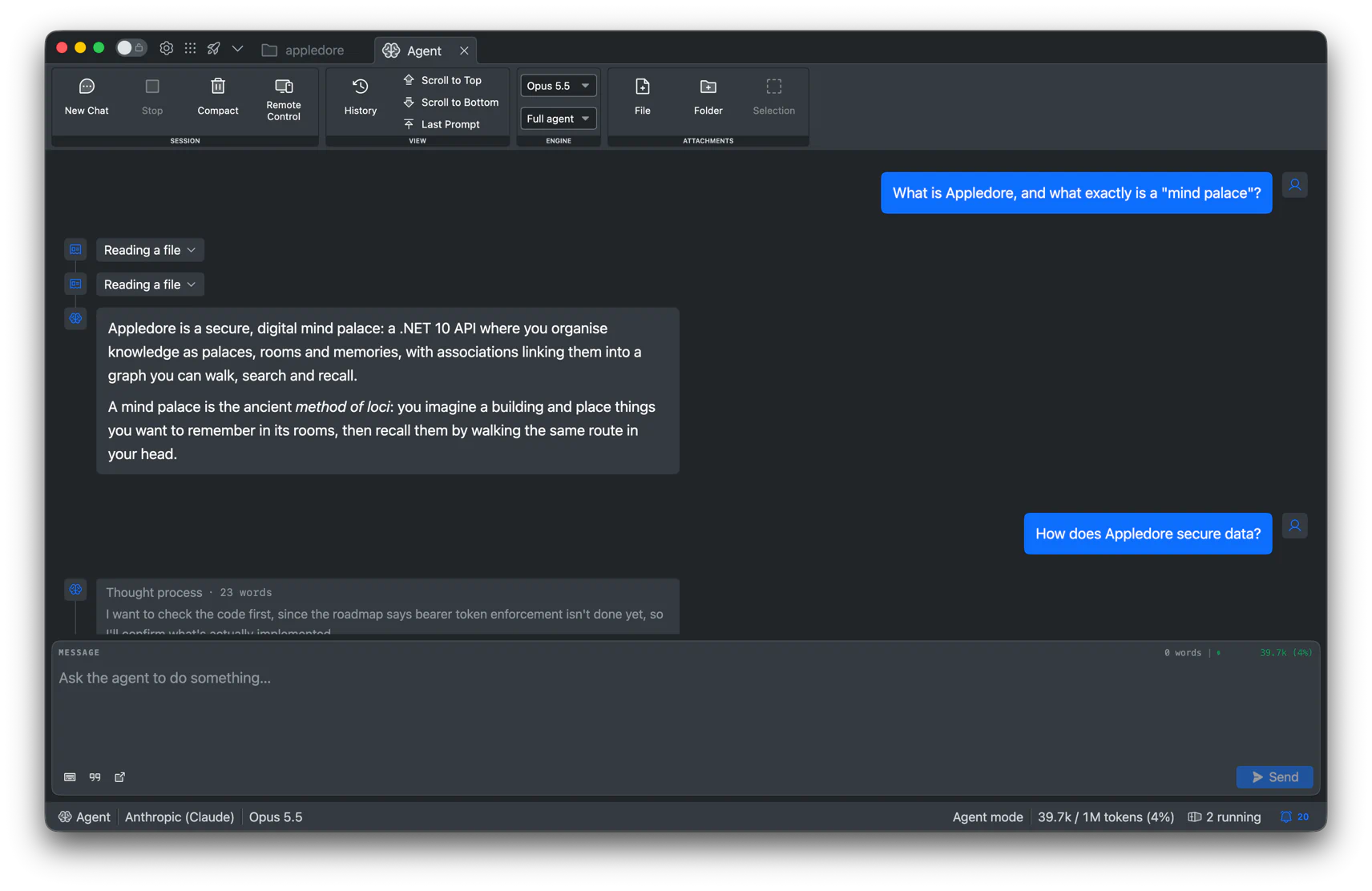
Sessions run on Claude through the Claude Agent SDK, or on OpenAI's Codex. Models from OpenAI, Google, xAI, DeepSeek, Ollama or any OpenAI-compatible endpoint get Studio's tools too, and each conversation can be a full agent or a read-only assistant.
Follow what an agent is thinking and doing as it goes, from its thought process to each file it reads and command it runs. Work it hands to sub-agents shows in lanes of its own that you can expand.
Point an agent at a file, a folder or your current selection, so it starts from what you're looking at. Mention a file with @, or paste or drop in a screenshot.
A meter in the message box shows how much of the model's context a session has used, including what you've attached. Compact the conversation when it starts to fill, and carry on where you left off.
Terminals
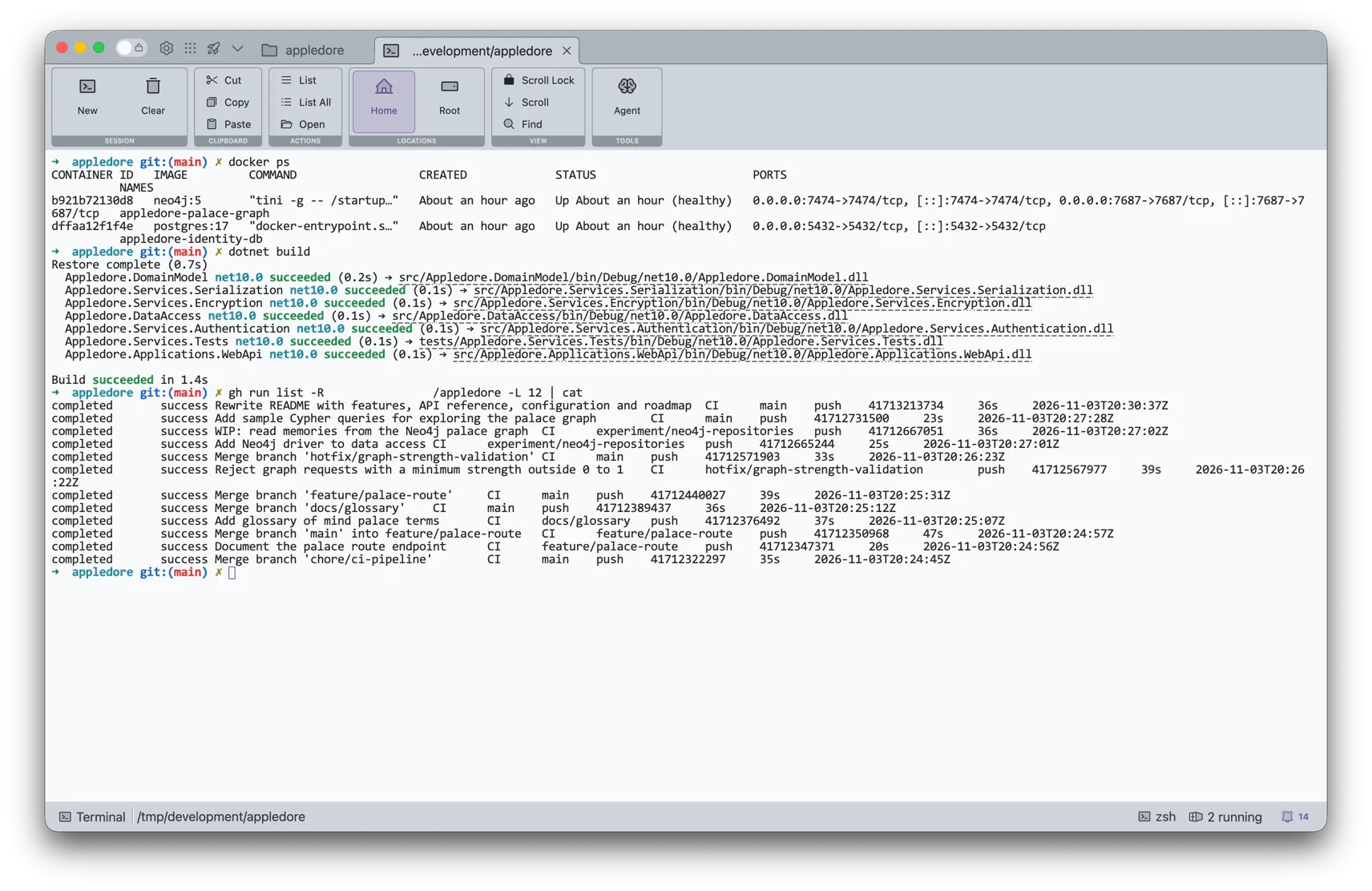
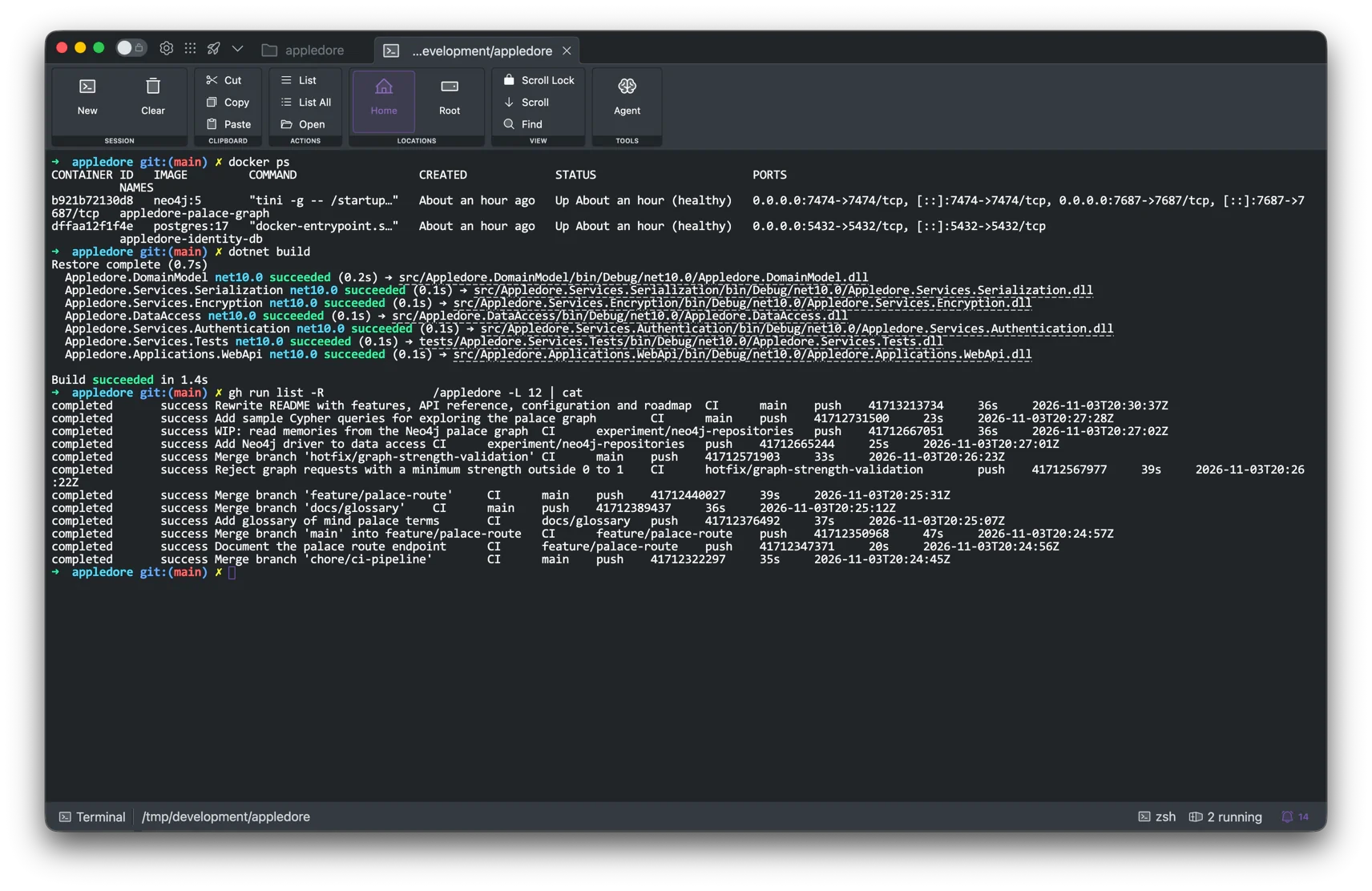
Docker, dotnet, gh and everything else on your path work as they always have, in the shells your system already has. Jump to your home folder or the project root from the ribbon.
Search back through a session's output instead of scrolling for it, and step from one match to the next.
Links in the output open with a click, and so do file paths, straight to the line and column they mention.
Agents can open terminals, read their output and type into them, just as you would. Every command they type there runs in plain sight, and you can step in at any time.
Version Control
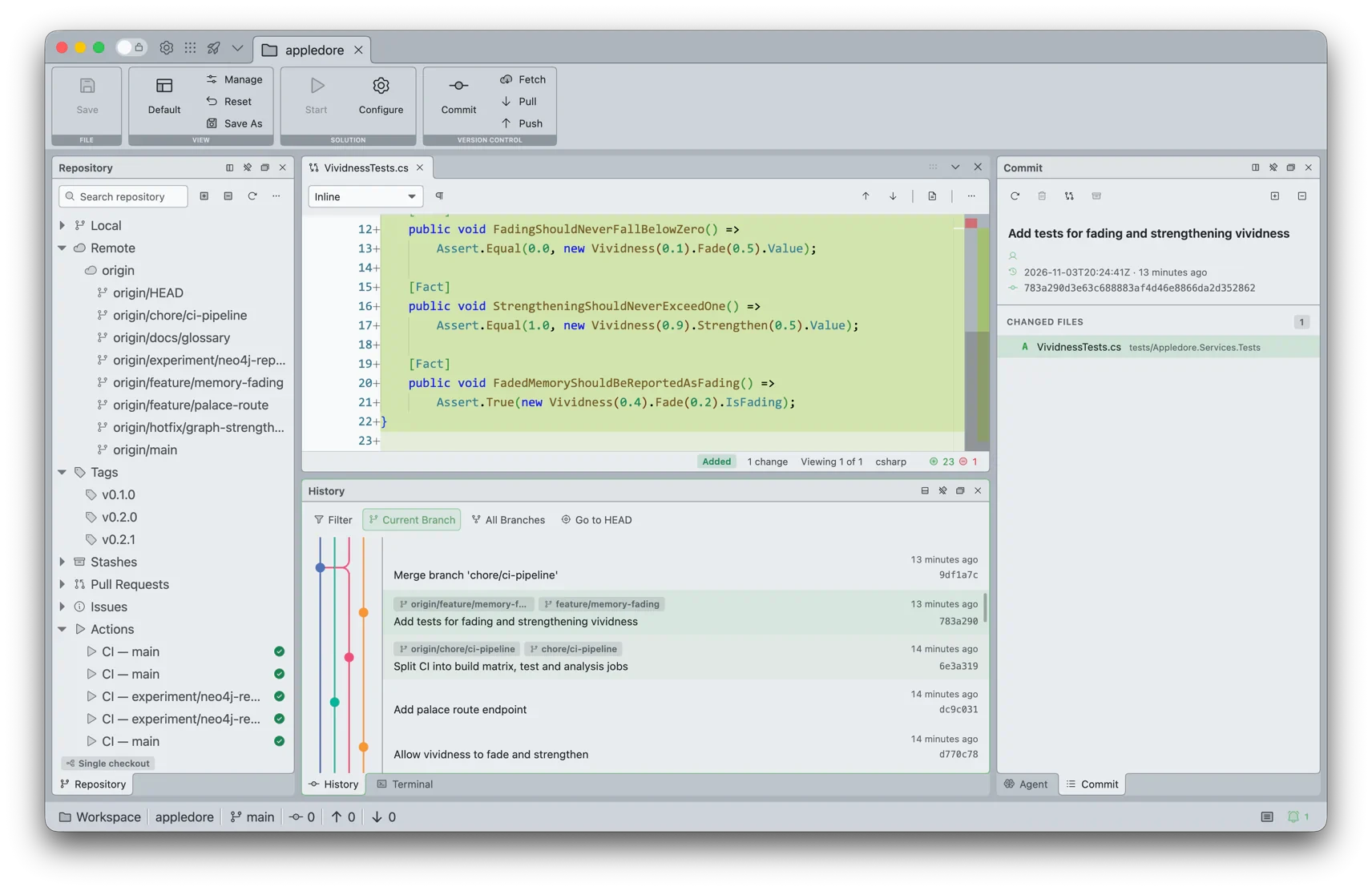
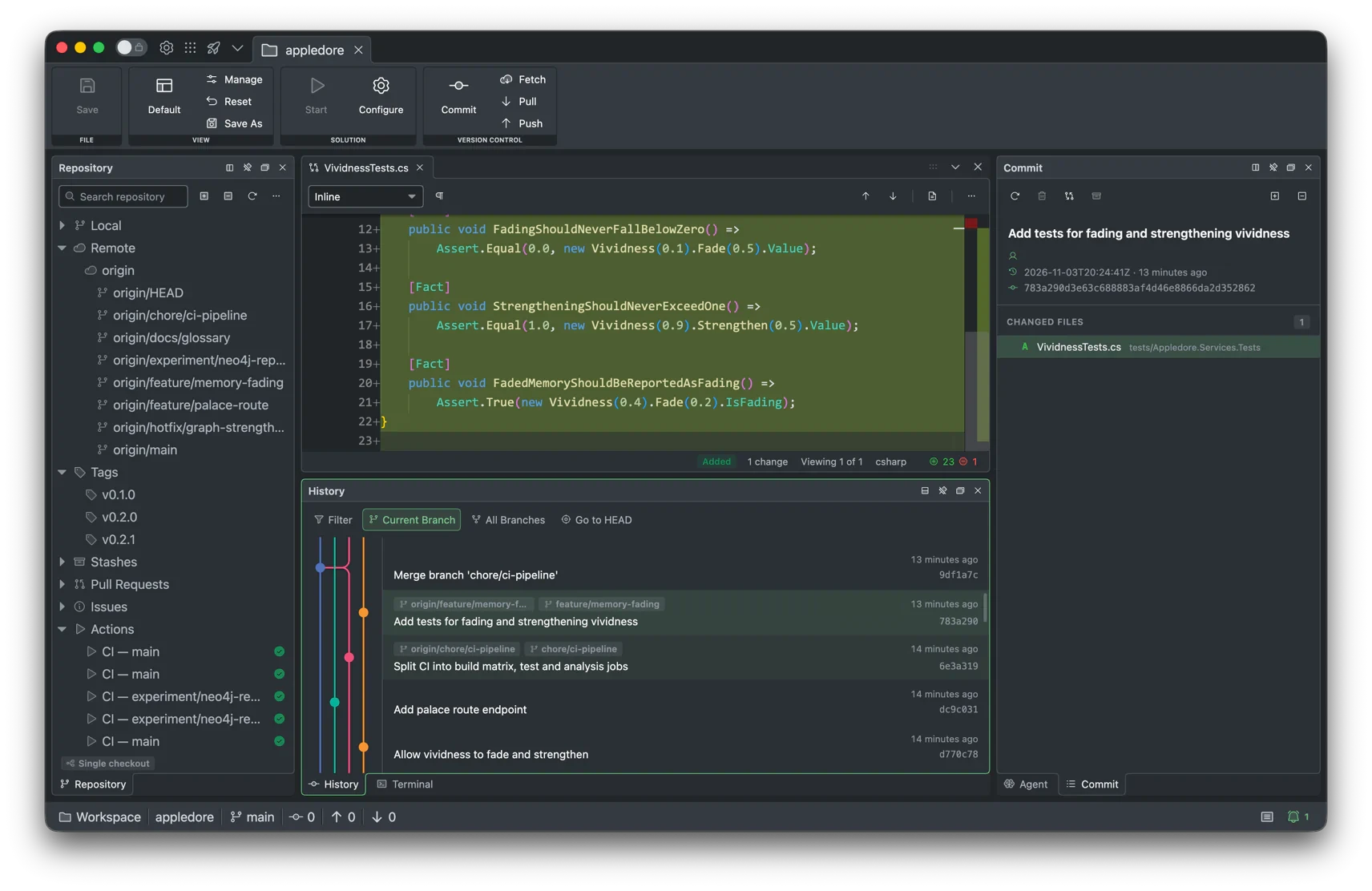
Local and remote branches, tags and stashes in one tree. Merge, squash or set an upstream from a branch, and apply, pop or drop a stash, without the command line.
Review each change inline or side by side, in the same editor you write code in. Revert a file's changes from the explorer when you'd rather start again.
Follow the commit graph across every branch, and open any commit to see what it changed. Or narrow it to a single file to see how that file got where it is.
With the GitHub plugin, your pull requests, issues and CI runs sit beside your branches. Check a pull request's status, re-run or cancel a workflow, or open an issue straight in an agent.
Database Explorer
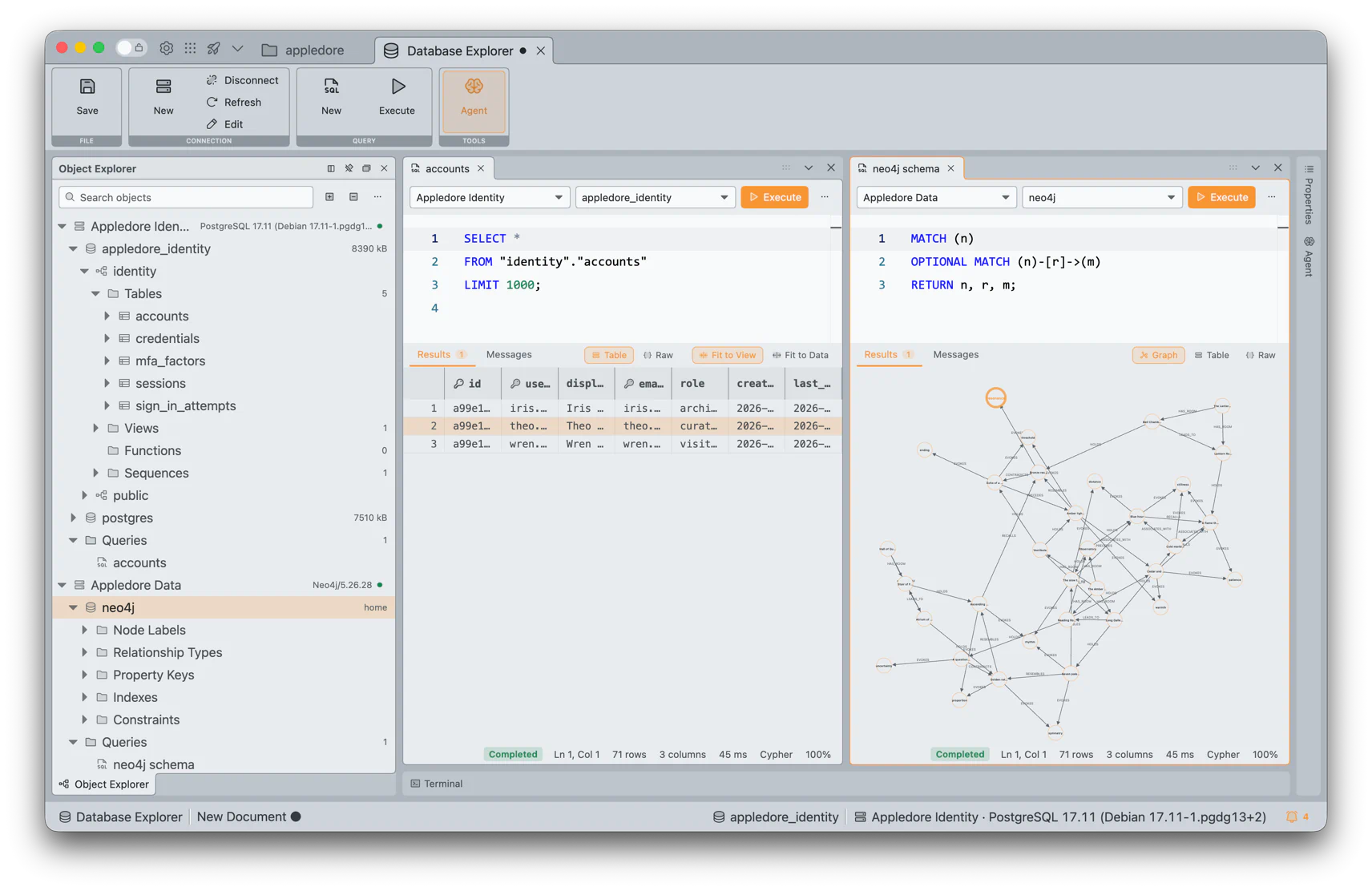
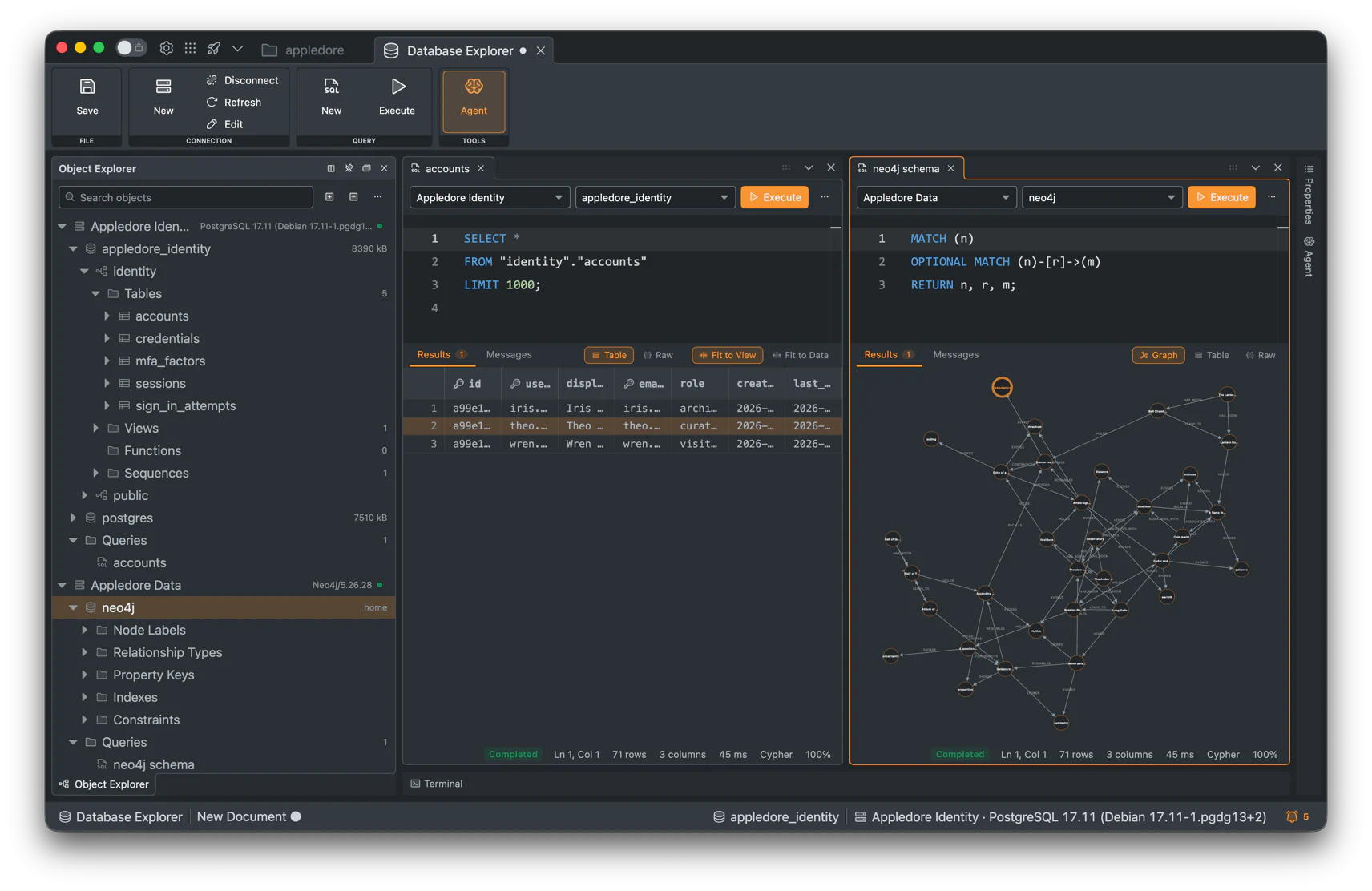
Connections, databases, tables, node labels and saved queries, in one tree. Expand a table to see its columns and types, keys, indexes and constraints.
Read rows as a table or raw, and export them to CSV, XLSX or JSON. Run just the statement you're on, and commit or roll back when you're working in a transaction.
Neo4j results can be drawn as the network they describe, as well as listed. The graph lays itself out as you watch, and you can zoom in on the part that matters.
Agents can browse the schema and write queries, and each run asks for your permission first. They can also read an object's script and save the queries they write for you.
Containers
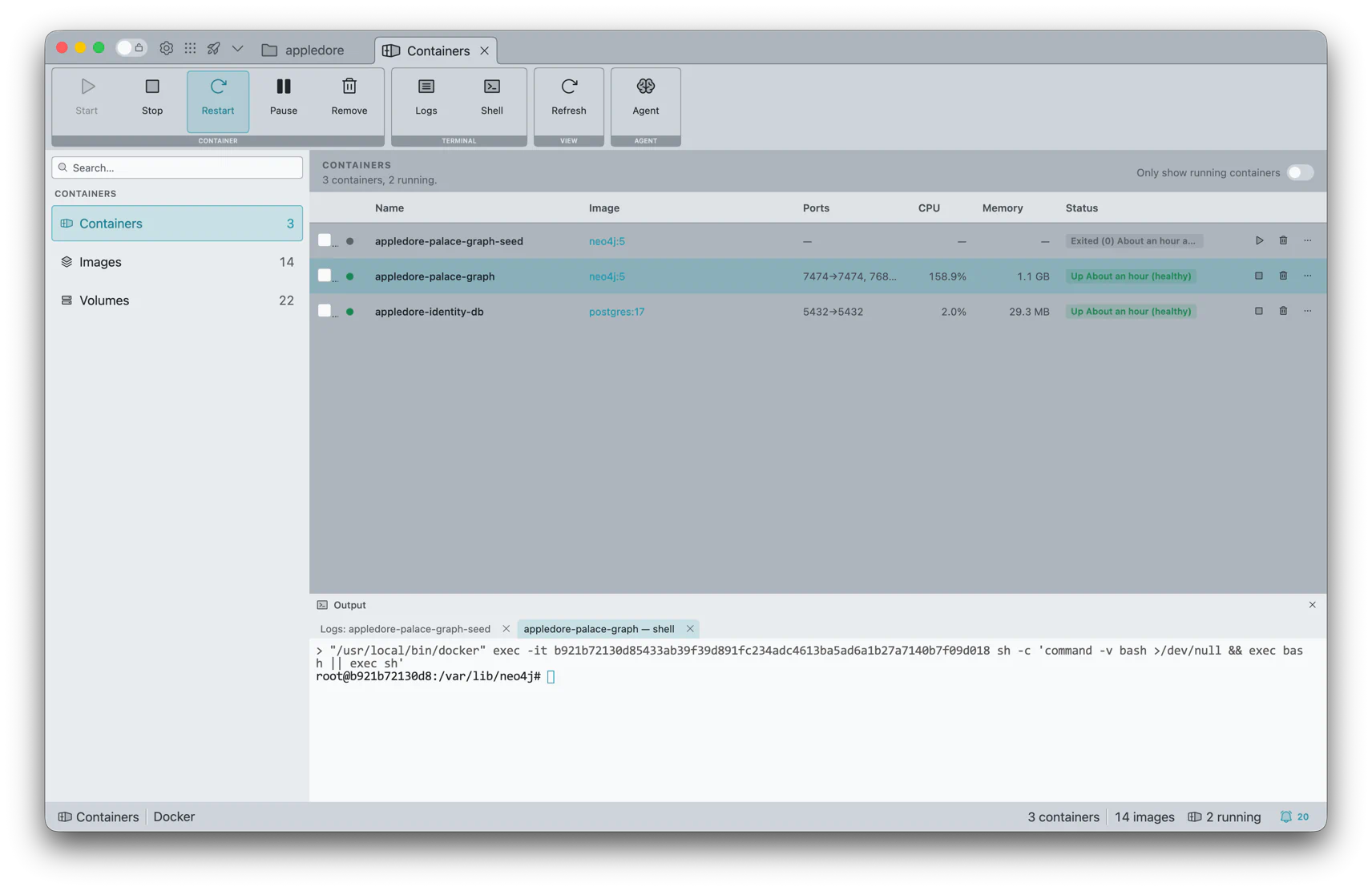
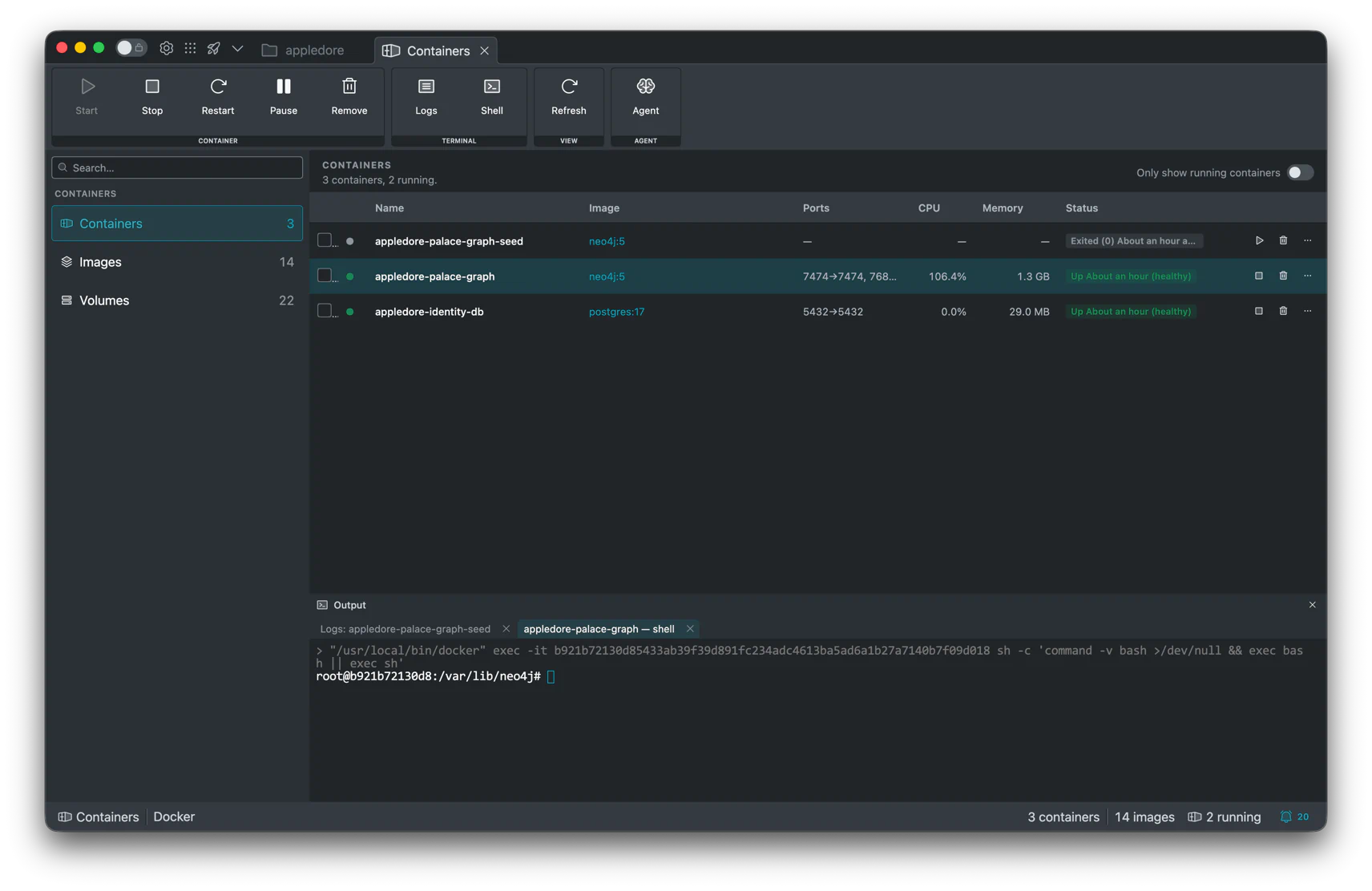
Everything your engine holds, in one searchable list, with each image's size and the containers using it. Pull an image, or run a new container with its ports, environment and volumes from a dialog.
Ports, CPU, memory and status for each container, updating as things change, straight from your engine's own statistics.
Start, stop, restart, pause or remove from the ribbon, without typing a command. Select several containers to act on them all at once.
Read a container's logs or open a shell inside it, in a panel under the list. Shells use your docker or podman command-line tool, so they behave as they would anywhere else.
API Explorer
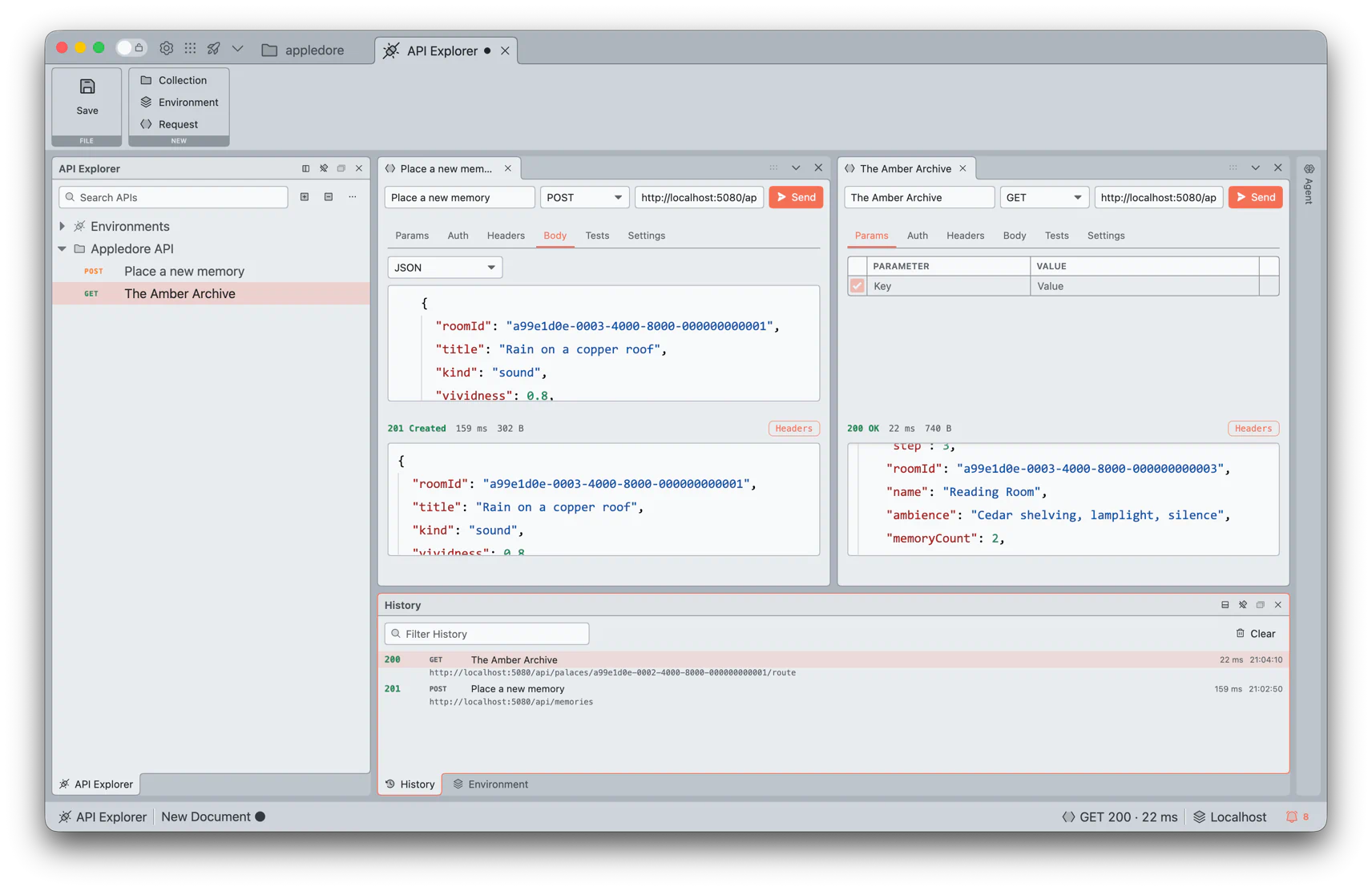
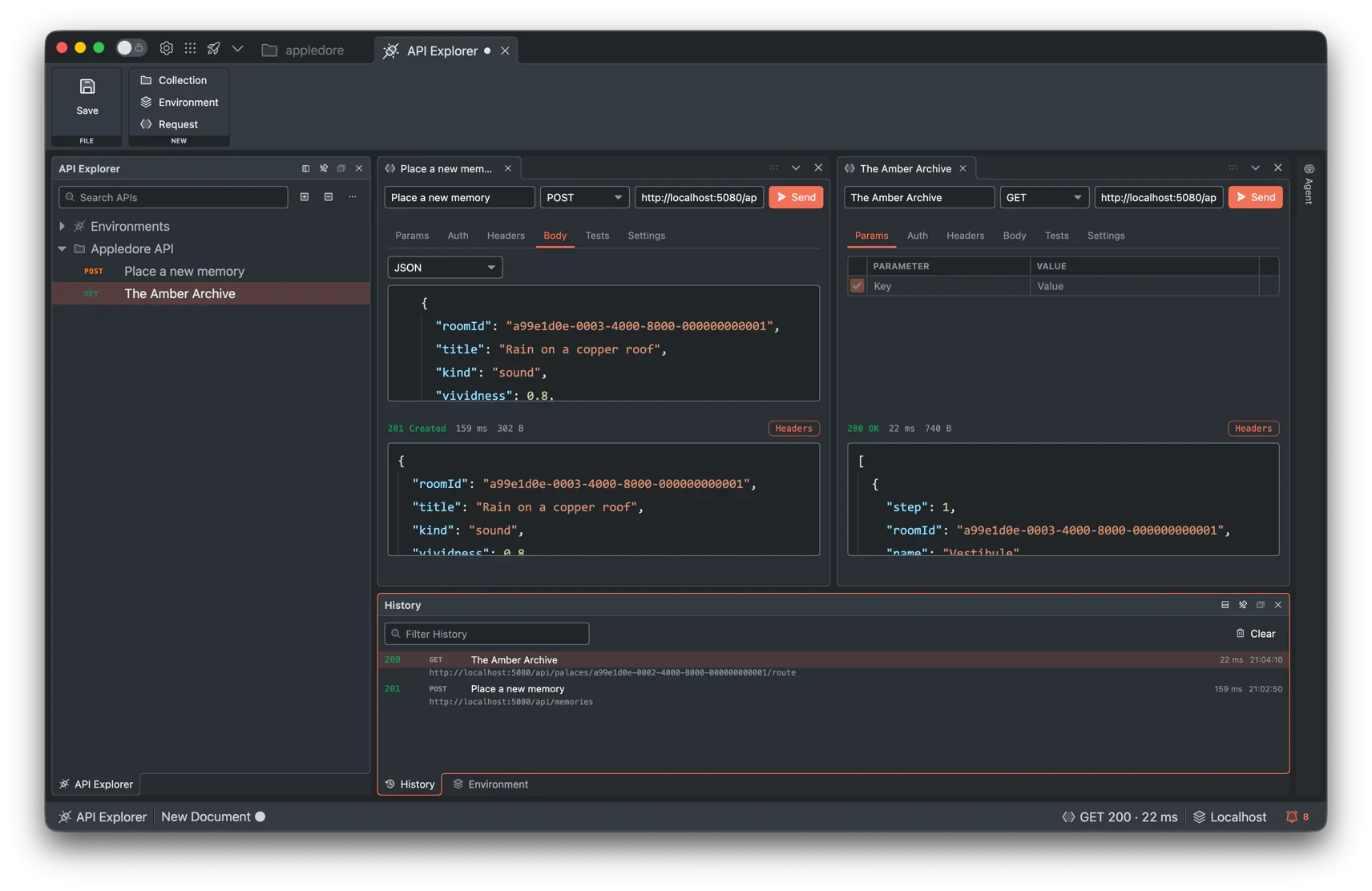
Group requests into collections and folders, and switch between environments such as localhost and staging. Variables fill in from whichever environment is active.
Set the method, parameters, auth, headers and a JSON, text, XML or form body. Bearer, basic and API-key auth are all supported, and each request can set its own timeout and redirect handling.
Formatted bodies, with the status, time and size at a glance. Timing separates the wait for the first byte from the total, and the final URL shows where any redirects ended up.
Everything you've sent this session, with its status and timing, ready to filter. Agents can create, update and send requests as well.
When several agents are running, each gets its own column on one screen, with its own model, effort level and history, so you can start, follow and redirect them all.
Agents write inside your workspace by default, and per-tool policies decide what each one may do, ask first or never touch.
Set breakpoints, step through your code and inspect the call stack, local variables and watched expressions. Proven today with .NET, Node and Python.
For NuGet and npm projects, see what you depend on, spot what has a newer version and search registries, including private feeds, with the credentials your project already has.
The model manager runs models on your own machine through Ollama, installing the runtime and pulling and removing weights for you.
Language servers, debug adapters, agent harnesses, database and container engines all arrive as plugins, so you install what your work needs.